Module 1 - Setting up the Processing Node Hardware
Introduction to the Processing Node
Node Identification
The configuration of the hard drives and Ethernet ports at the rear of the node will be dependent on the make/model of the node being used.
The datasheet for the current OptaSense Processing Node is available upon request
The Asset number on the unit is uded identify the unit and allow further information to be obtained.

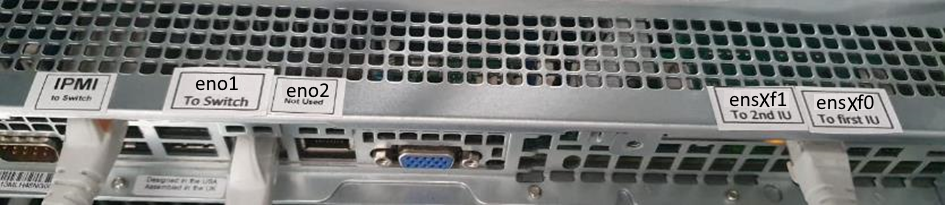
The ethernet ports being used will be dependent on your installation. The ethernet port layout is shown below:
| Port | Description |
|---|---|
| eno1/eth0 | Onboard port used to connect the node to the system via the GES |
| eno2 | Redundant interface |
| ensXf0 | PCI port used to connect back to the first IU (Where sX is interchangeable) |
| ensXf1 | PCI port used to connect to a secondary IU (DPU/DXPU only) IU (Where sX is interchangeable) |
| IPMI | Provides connectivity to IMPI for maintenance via the GES |
The number of hard drives installed in the server will also depend on the requirements for the server. The layout of the hard drives is shown above sets out the drives that are utilised with the different processing units.
Internal drive lettering cannot be relied upon such as sda, sdb and bay position. Disk partition labels can be used as a fixed identifier for specific disks.
See below an example of disk positioning.

Hard Drive – Bay Allocation
| BAY | A | B | C | D |
|---|---|---|---|---|
| LABEL | DISK1PART1 | DISK2PART1 | DISK4PART1 | DISK3PART1 |
| PU | 500 GB | 14 TB | 14 TB | 14 TB |
The above setup is dependent on the make/model of the Processing Unit
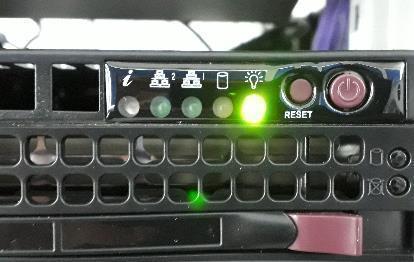
The power and reset buttons can be found above the last hard drive bay (D). The servers are normally configured to restart on AC power loss although it may be required to reboot the server manually. The LEDs located next to the power button enables the user to check the network and hard drive usage of the server to ensure it is functioning correctly.
Linux Installation for a Processing Node
There are two distinct methods that can be followed for Linux installation.
The first of which is by using a physical device such as a DVD or USB key that includes the latest supported OptaSense build of the Linux operating system. This method requires someone to physically insert installation media into the node.
The second method is to configure virtual media over IPMI. This method allows the installation to be completed remotely over the local network, removing the need to physically go to the node.
Installing Using DVD/USB
A Linux operating system DVD/USB needs to be acquired from OptaSense to use for the installation process. The DVD/USB used needs to be of the latest supported revision to be compatible with the version of OptaSense that is to be installed.
You may need to consider hardware compatibility especially in situations where you encounter old hardware. The Linux installation is a narrow installation of Oracle 9 tied to range of OptaSense supported hardware.
The following procedure is for OptaSense Linux Version 3.0.3 onwards. If you are installing a previous version, it is recommended that you contact your OptaSense representative before continuing.
Please also note, Linux Version 3.0.3 onwards is only compatible with OS6.8 onwards.
The following procedure should be observed to install the Linux operating system:
- Temporarily install a monitor into the VGA port on the Server and a keyboard to either the front/rear USB ports
- Insert the configuration DVD/USB into the Server and effect a hard reboot (from the power switch).
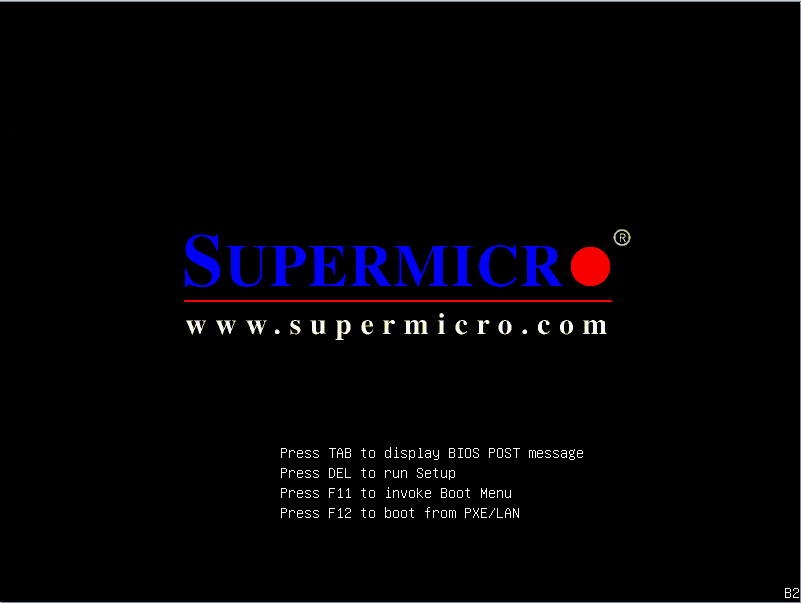
- On the boot of the Server, to enter the BIOS, press Del to run Setup.
- Navigate to the BOOT tab in the BIOS then ensure that ‘CD/DVD’ or ‘USB’ is the first device in the boot priority depending on your method.
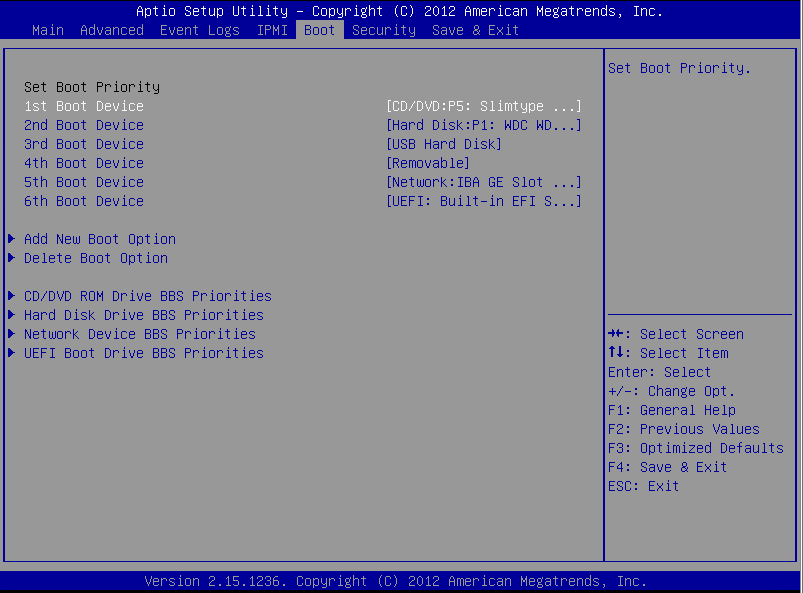
- When the boot priorities are set up correctly then navigate to the ‘Save & Exit’ tab. Then save changes and reset
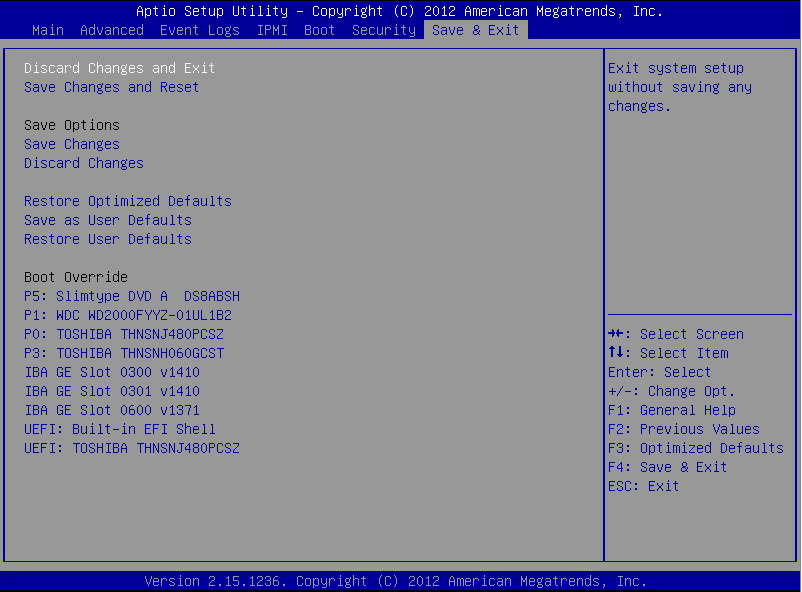
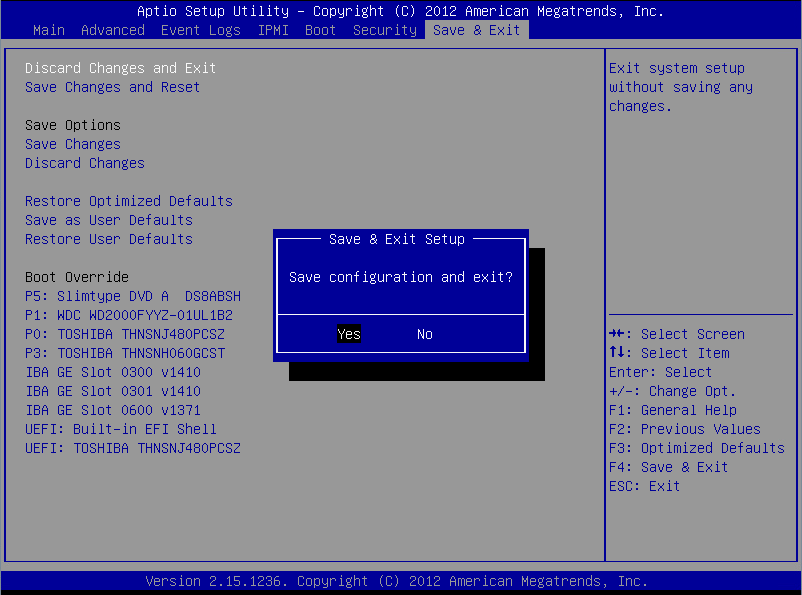
-
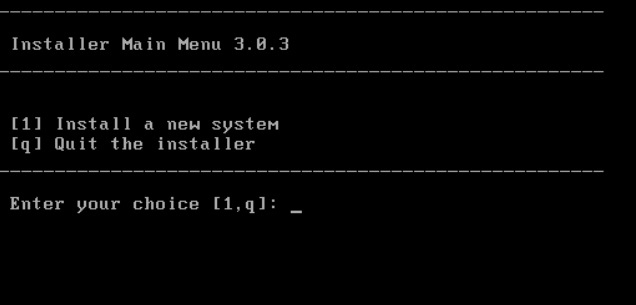
The Server will boot from DVD/USB and a number of modes will be offered in the ‘Installer Main Menu’. Failing the ability to setup autoboot device priorities as above, you can use F11 at POST to perform a one-off boot from a particular device.
-
To install a new operating system, enter your menu choice as ‘1’ then enter.
-
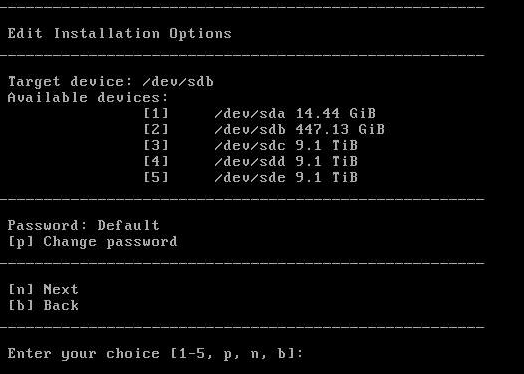
The next ‘Select install device’ menu will give a range of options.
-
Select the disk which has a similar capacity of 500 GB.
-
The “Target Device” will show your selection.
-
At this stage using the menu item ‘p’ you can set the root password of the node. Failure to set this value will result in the default password being used.

-
Press ‘n’ to proceed to the next menu item.
-
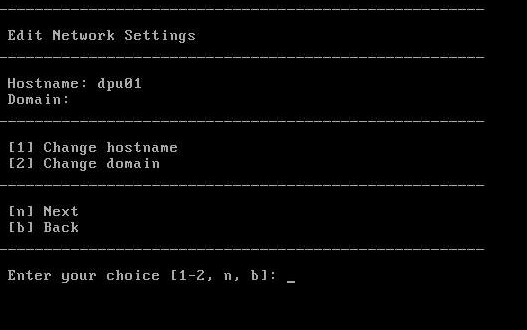
The next menu will ask for a host name. Enter your menu choice as ‘1’ and then press enter. This will allow the host name of the node to be entered.
-
Type your hostname and then press enter. The hostname will be documented on the approved Network Diagram (ND) for the system.
-
After the selected menu choice has been reflected in the refreshed menu, enter your menu choice as ‘n’ and then press enter to proceed.
-
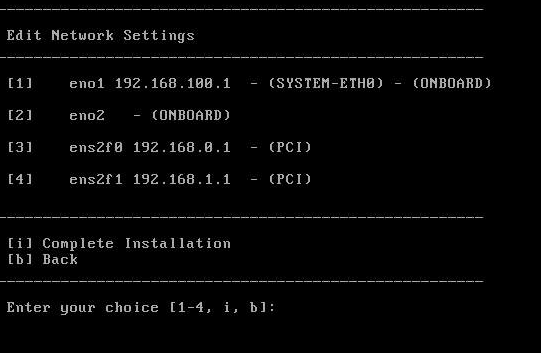
The next menu item will allow you to configure the network.
-
Select using the numbered index which network interface you wish to modify, in a normal situation.
- eth0 will be that within the approved Network Diagram (ND) for the system supplied, this interface is used to communicate with the rest of the system.
- ens2f0 will be that used to connect to the first IU, the default settings for this should be adequate in most situations.
-
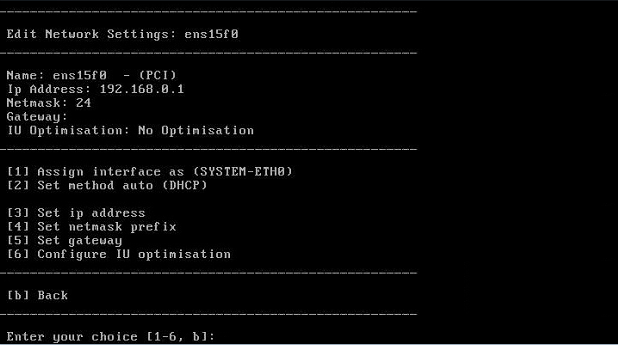
Within the configuration of a network interface items are mostly self-explanatory and use standard network configuration names.
-
Modify the following settings where required to comply with the approved Network Diagram (ND) for the system.
- Assign/Unassign interface as eth0, this is to allow flexibility with older systems and not usually of concern to the engineer. Where you are using an old system with legacy network configurations, please seek. eth0 indicates the network interface used to connect the node to the rest of the system.
- Set method auto/manual (DHCP/Static) can be used to set the network interfaces protocol for ip address allocation.
- Set ip address where the interface is static set the static ip address.
- Set netmask prefix where the interface is static set the netmask prefix.
- Set gateway where the interface is static set the default gateway.
- Configure IU optimisation allows optimisation of the port that the IU will be connected to. This should be configured according to the type of IU. Not available on the eth0 port
-
Press ‘b’ to proceed to return to the network setup menu.
-
Once you are happy with your network configuration begin the installation by pressing ‘i’.
Item eno1/eth0 ens2f0 ens2f1 PU Static – Ethernet connection to switch Static – Ethernet connection to an IU Not Required DPU Static – Ethernet connection to switch Static – Ethernet connection to an IU Static – Ethernet connection to an IU 
-
Once the installation is complete, reboot the Server and remove the disk. Once the server has restarted wait for the login page to appear (NOTE: this may take up to 10 minutes). Then login to Server with the correct username/password (if unsure of these details, please contact your OptaSense representative)
-
The installed version can be confirmed by entering the command: cat /etc/*release.
Configuring Using IPMI
To install Linux remotely by using virtual media access, connect to the IPMI web interface of the system by entering its IP address into the web browser. The IP address will be listed on the ND for the system.

-
Navigate to Remote Control > Console Redirection, then click on Launch Console. Depending on your browser and BMC hardware, this will either launch console immediately or it will download a file called “launch.jnlp”.
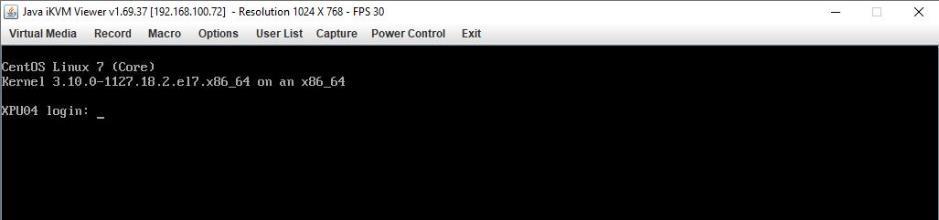
-
Once the console redirection window is open, select the Virtual Media menu option in the upper left of the window, then select Virtual Storage.
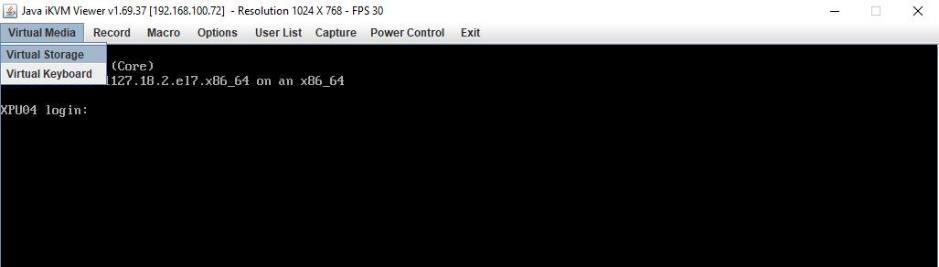
-
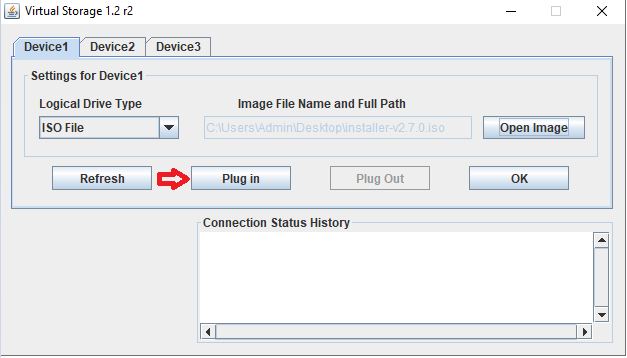
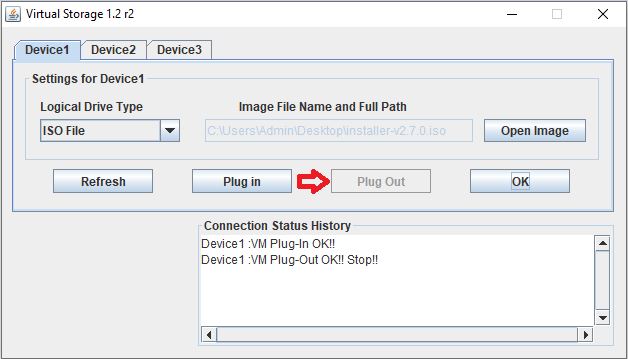
The virtual storage window will open. Click on the Device 1 tab, then select ISO File from Logical Drive Type drop-down list.
-
Click on the Open Image button and browse local folders on your client system for the .iso file. Select the appropriate .iso file and click Open.
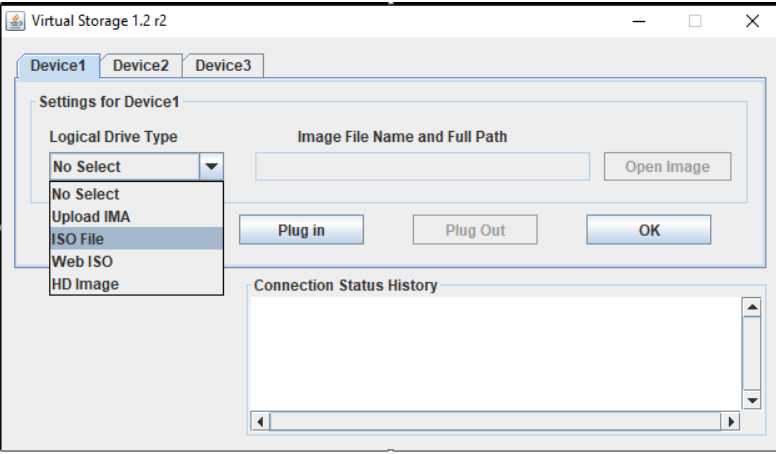
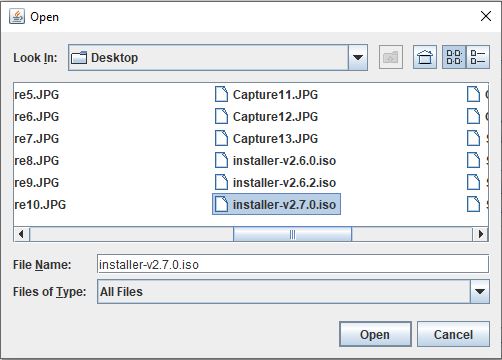
-
Click on the Plug-In button below to mount the ISO as a virtual CDROM device.
-
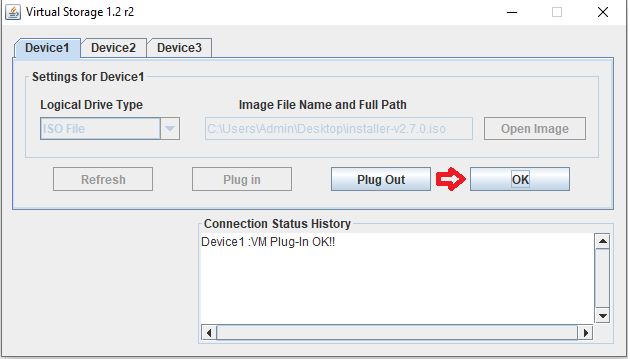
Ensure that the Connection Status History shows “Device 1:VM Plug-In OK!!” to indicate that the ISO has been mounted. Click on OK to close the Virtual Storage window.
-
Use the remote console to reboot the system. This can be done with the Power Control menu then Set Power Reset to send a physical chassis power reset, or by a soft command line reboot from the operating system.

-
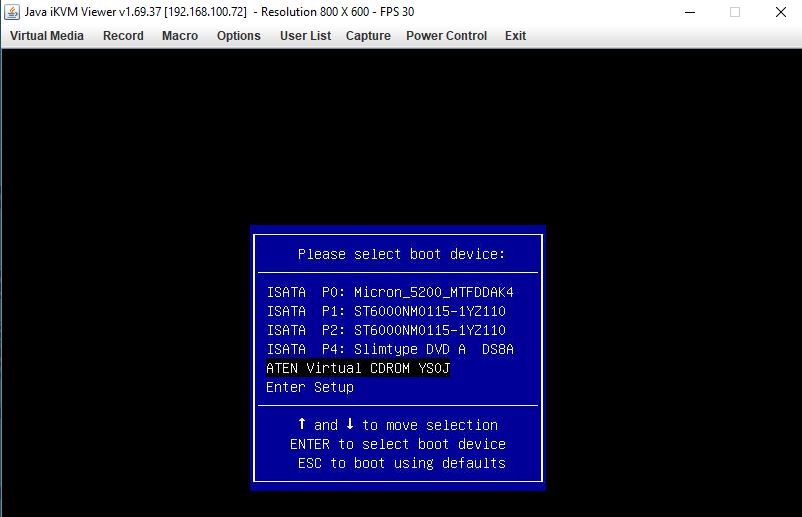
During the reboot, hit <F11> when prompted to open the one-time boot menu.
 note
note
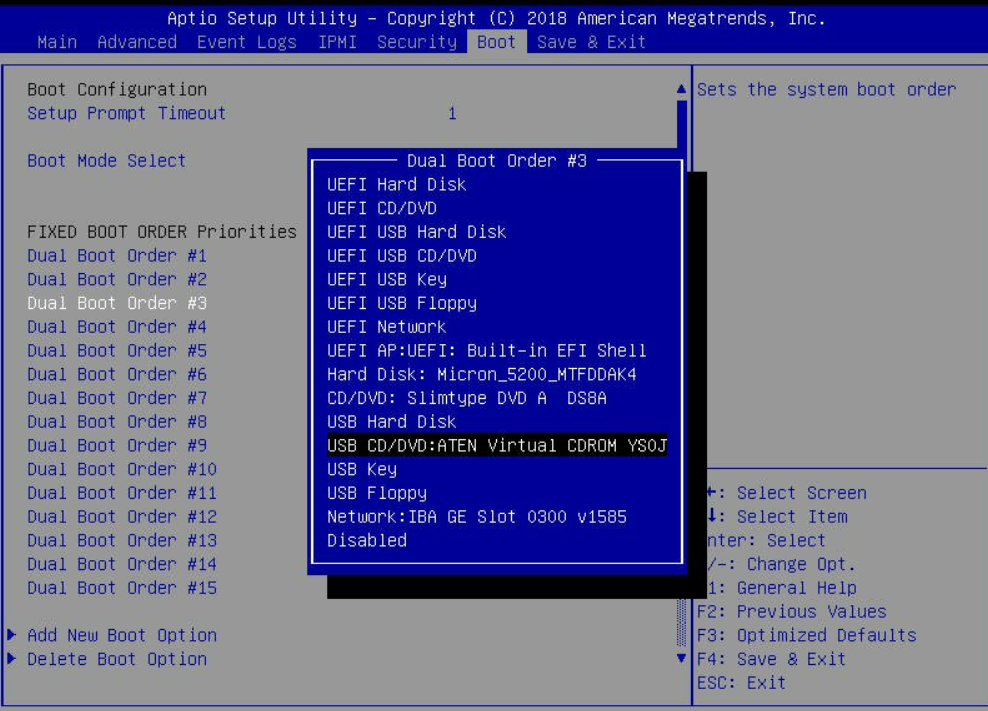
If the Virtual CDROM option does not appear in the boot device list, select Enter Setup to go to BIOS Setup and add the Virtual CDROM option from the boot tab. :::
-
After enabling the virtual USB CD/DVD boot option, Save & Exit. It will directly boot from the virtual CD/DVD-ROM and the Linux Installation page will appear.
-
Follow the steps listed in Section. Once the Linux installation is completed and before rebooting to complete the installation, ‘Plug Out’ the .iso file using the virtual media option. The Connection Status History window should then confirm that the virtual media has been successfully plugged out.
Additional Node Configuration
Setting up the IPMI facility
All network nodes have the ability to utilise a spare Ethernet Port for the configuration of the Intelligent Platform Management Interface (IPMI) system. Configured correctly, the IPMI system allows you to log in remotely on the configured IP address by using a web browser on any CU connected to the network. Once logged on, systems can be remotely managed and a vast amount of diagnostic information can be accessed, including if cooling fans are running correctly.
The following procedure should be followed to activate the IPMI feature on each server and processor nodes:
-
Enter the BIOS configuration menu by pressing ‘delete’ when prompted during the boot of the server.
-
Toggle across to the ‘IPMI’ tab. Highlight ‘BMC Network Configuration’ and press enter. Press enter again and select ‘Update IPMI LAN Configuration’, then press enter and from the dropdown box select ‘Yes’. Adjust the IP address as indicated on the approved ND diagram and ensure the ‘configuration address source’ is Static.
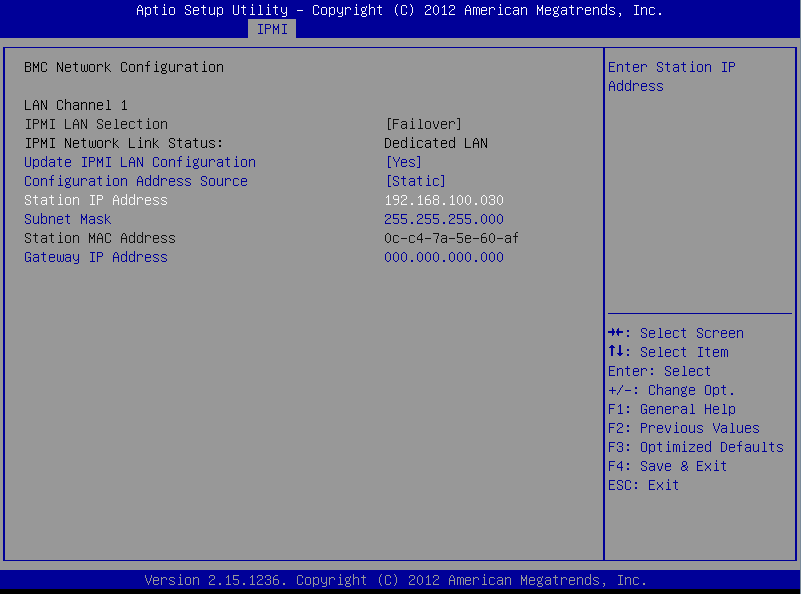
Before saving the changes it is recommended to enable the “restore on AC power loss” function (see Section) while in the BIOS setup.
-
Save the changes and exit by pressing F4 and then ESC. The processor or server node should start to load up automatically.
-
To check the IPMI system has been configured correctly, connect a laptop to the newly configured Ethernet port ensuring that the laptop has a suitable static IP address and subnet mask for the IPMI Ethernet port. Once this has been done, open a web browser and type in the IP address of the configured IPMI Ethernet port to confirm its successful configuration.
Setting up the nodes to restore on AC power loss
All of the server and processor nodes have the ability to restore automatically on AC power loss. This is very useful when a power cut affects equipment located hundreds of kilometres away.
The following procedure should be followed to activate the restore on AC power loss feature on each server and processor node. If the IPMI system has just been configured and you are in the BIOS setup then skip to the point 2.
-
Enter the BIOS with the same method as above.
-
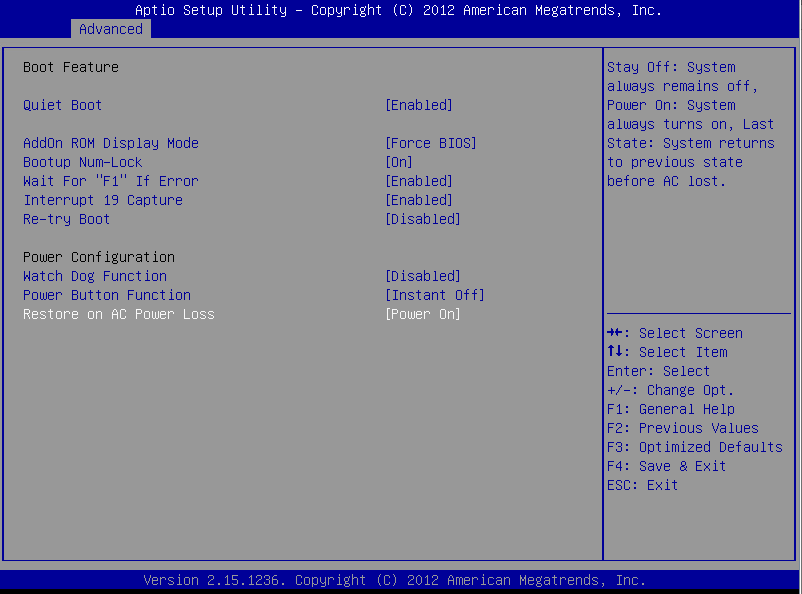
Toggle across to the ‘Advanced’ tab. Highlight ‘Boot feature’ and Press enter.
-
In the new ‘Advanced – BOOT feature’ sub-menu, highlight “Restore on AC Power Loss” and ensure it is set to “Power On”.
-
To save the changes and exit, press F4 and then ESC. The processor or server node should start to load up automatically.
Changing the server hostname, IP and/or Gateway
If the IP address of the server is incorrect or temporarily needs changing, follow the instructions:
- Open Putty.exe from a CU on the network
- Putty into the desired node by filling in the IP address and clicking the ‘Open’ button
- Enter username: if unsure of these details, please contact your OptaSense representative
- Enter password: if unsure of these details, please contact your OptaSense representative
- Enter username:
su - Enter password: if unsure of these details, please contact your OptaSense representative
- Enter command:
nano /etc/NetworkManager/system-connections/eth0.nmconnection(or ens2f0 or ens2f1) – this will allow you to change the network adapter configuration. If you wish to change the hostname, then instead,nano /etc/hosts. Note: if you change the eth0 IP address you will HAVE to update the hosts file regardless. - Make required change to ifcfg or hosts as needed
- Press ctrl-x to exit and enter
yto save the changes
If we finish at this point, we can test by entering out the following command: systemctl restart NetworkManager
If the PU is rebooted, all the changes will be lost.
To make the changes permanent:
- Enter command:
mount /mnt/cflash/1_0.nod /mnt/tmp -o loop(If the directory doesn’t exist then first enter:mkdir /mnt/tmp) – this will mount (temporarily) the OS source from cflash – if we make changes here they will be permanent – so take care and make sure they are right. We can either make the same changes to the files in this new mounted tree or copy them from files previously modified. - Enter command:
cp /etc/hosts /mnt/tmp/etc/hostscopying the above FIXED file into the master location. Or if you want to copy the network config file:cp /etc/NetworkManager/system-connections/eth0.nmconnection /mnt/tmp/etc/NetworkManager/system-connections/eth0.nmconnection - Enter command
umount /mnt/tmpto unmount the temporary directory. - You can now reboot the system and confirm the changes.
Configuring Rolling Recorders
The simplest way to manage the rolling recorder disks is from within the application itself (see documentation in the Module 6). However, a more detailed exposition of the direct Linux commands and how to do this without OS6 installed is shown in the next sections.
All data recording functions are performed on the PU. Depending on the setup, the number of hard disks and capacity of the hard disks varies. If the item is a (X)DPU then two ‘rolling recorder’ hard disks are required as they serve two separate IUs.
The Rolling Recorders can record:
- Sensor data
- Histogram data
- (specific) Detector processed data
Typical data storage rates for a standard 50km, 5000 channel installation, sampled at 2 kHz are:
- Histogram ~13 GB a day
- Full Sensor data ~1.6 TB a day
The Rolling Recorder can be configured to meet client requirements i.e. to store more Histogram data or Sensor data.
The following sections will describe what needs to be done to ensure that all of the hard disks within the server or processor node are configured and set-up correctly.
- Ensuring that the physical location of the mounted hard drives is as expected
- Formatting the rolling recorders
- Checking Disk labels
Checking the physical location of the mounted hard disk drive
The following instructions are included for completeness but can be skipped in most circumstances as units will have been tested by OptaSense prior to leaving the factory.
All the server or processor nodes will be delivered pre-built by the project engineers. The project engineers will always deliver the items with the Operating System Disk on the far left and the Rolling Recordder hard disks in the next slots as required. All manual recording data will be stored on the right-most hard disk.
| Item | Number of HDD’s | Mounts |
|---|---|---|
| PU | 3 | disk1part1– 500GB SSD; disk2part1 – 10 TB, disk4part1 – N/A, disk3part1 - 10TB |
| DPU | 4 | disk1part1– 500GB SSD; disk2part1 – 10 TB; disk4part1 – 10 TB; disk3part1 – 10TB |
To check the location of the drive you can enter ``dd if=/dev/sdX of=/dev/null` which will enable the light on the drive (X being a, b, c or d).
To check the location of the drive via disk label you can enter dd if=/dev/disks/by-label/diskXpart1 of=/dev/null which will enable the light on the drive (X being 1, 2, 3 or 4).
Entering fdisk -l \| grep Disk will list all the available disks and their full potential disk space
Formatting the Rolling Recorders
Standard fdisk in Linux cannot handle drives over 2.2TB, standard rolling recorders hard drive sizes are 10TB. Again, note that this should be handled from the OS6 GUI, but if required – please use the following.
df -h
umount /mnt/diskX (where X is either 2 or 3)
parted /dev/sdX (where X is b or c as required)
mklabel gpt
yes
gpt
mkpart primary 0% 100%
quit
mkfs.ext3 -L diskXpart1 /dev/sdY1 (where X is either 2 or 3 and Y is b or c as required)
mount /mnt/diskX (where X is either 2 or 3)
df -h (ensure that the disk has mounted correctly and the drive is formatted to the size as required)
Disk Labels in OS6
In OptaSense OS6, disks are referred to by labels rather than absolute names. Labelling and mounting the OS boot disk is taken care of by the installer or on reboot.
In the unlikely circumstance where a label needs to be changed, use the following command:
e2label /dev/sdb1 disk2part1
e2label /dev/sdc1 disk3part1
Rolling Recorder Troubleshooting
This section recommends a set of commands and the order in which to carry them out in order to diagnose the cause of problems with the hard disks.
Step 1: Identify location of the disks
From time to time the location of the hard drives can change from the expected location. The following commands will help locate and identify all hard drives installed.
Commands:
fdisk -l \| grep Disk will identify all disks installed and the pre-formatted size.
dd if=/dev/sdX of=/dev/null will light up the status light on the specified disk
dd if=/dev/disks/by-label/diskXpart1 of=/dev/null will light up the status light on the specified disk
Step 2: disk free “df” command
The command df (abbreviation for disk free) lists the currently mounted hard drive partitions (amongst other things). If your disk does appear on this list, then it is formatted and mounted, and the hard disk isn’t the cause of your problems.
Consider the output from the df command. The lines we are interested in are the ones which start “/dev/sd”… In the example below two partitions are mounted, /dev.sda2 is mounted at /mnt/user and /dev/sdb1 is mounted at /mnt/disk2. However, disk 3 (which should also be present in this case) is missing.

Step 3: display message “dmesg” command
If one or more of the disks are not mounted, then the next step is to check that they are all plugged in. The command to use is
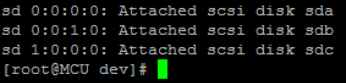
dmesg \| grep -i disk
The number of lines this produces equals the number of disks that linux can see plugged in.
The figure below shows the output from the dmesg \| grep -i disk command. Here there are three disks plugged in, sda, sdb and sdc. If you don’t have the correct number of disks here, then the problem is most likely that the disk isn’t probably connected.
Step 4: list “ls” command
If your disk is plugged in but not mounted, then the problem could be that it isn’t formatted. To check if this is the case use the following commands in sequence:
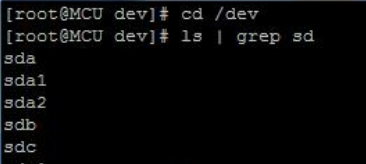
cd /dev
ls \| grep sd
The figure below shows the output of these commands. The lines that don’t end in numbers (sda, sdb and sdc) are the names of the hard drives, and the lines that end in numbers are the names of the partitions. In the example disk sda has two partitions: sda1 and sda2, and disk sdc has one partition sdc1 (not visible), however sdb has no partitions, so the problem is that the second disk (sdb) needs formatting.
Step 5: file systems table “fstab” command
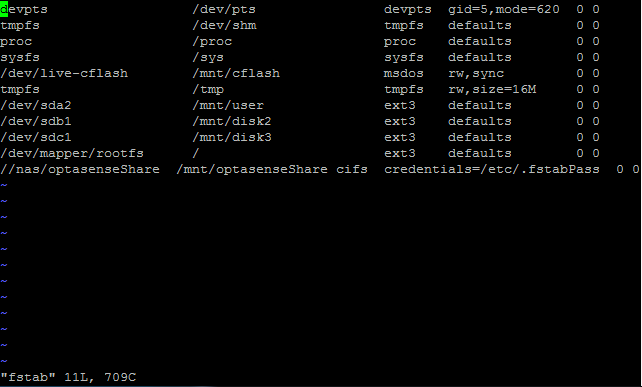
If the partitions appear in the list from step 3, then the problem could be that the hard drive is not in the mount list. Use the following commands in sequence:
cd /etc
vi fstab
To exit the vi editor, once you have checked the file you will have to type :q then press enter.
The figure below shows the output of these commands, in the example both sdb1 and sdc1 are present, so should be mounted. If these were missing then the best option would be to reinstall the operating system, as it could indicate something went wrong with the install. However, you could try adding the required lines to fstab.
These edits will need to be made permanent if they are to survive a reboot.
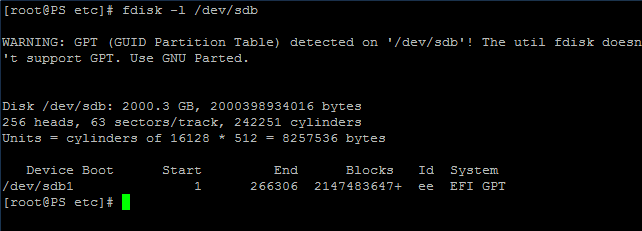
Step 6: fixed disk “fdisk” command
If you have reached this point then the hard drives are correctly plugged in, formatted and in the table of drives to mount. It is possible that the drives may be formatted incorrectly, to check this type:
fdisk –l /dev/sdb (or sdc depending on which hard drive isn’t mounting).
The figure below shows the output of fdisk –l. In the example the “system” column says “EFI GPT”, it should say “Linux” for a 2TB drive (EFI-GPT is correct for 3TB) so this is the source of our problems. In this example you would have to delete the partition (type fdisk, then d), then reformat the drive.